Kaplan Test of English Guidance and Instructions
This page contains important information about Kaplan Test of English. You must read all the information below before you follow the included instructions to complete your test.
A. About the Test
What is Kaplan Test of English?
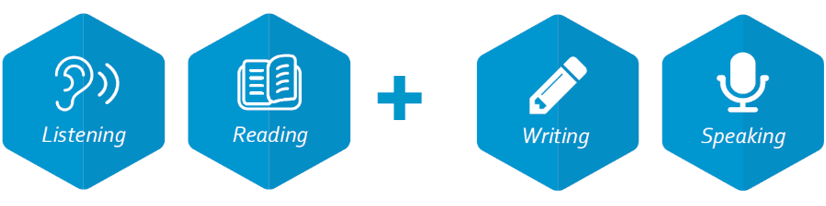
Kaplan Test of English is an adaptive online test that assesses your level of English language proficiency in different skills. During the Listening and Reading sections of the test your ability is continuously estimated. The test chooses items based on how you answered the previous question and updates that estimate until it is accurate.
Listening and Reading
- During the Listening and Reading sections of the test, you may be asked to listen to conversations and read various text types, before answering multiple choice questions.
- These sections do not have a timer. They will end when the testing system has enough information about your English level. On average, it takes slightly over an hour to complete both the Listening and Reading sections.
Writing and Speaking
- For the Writing test you’ll have 35-40 minutes to read and respond to the on-screen task, which typically draws on common and relatable topics while encouraging you to engage with abstract ideas. You may be asked to produce your response in formats such as emails or essays, which will be assessed by our human grading team.
- The Speaking test is timed and takes around 10 minutes. You’ll be given a series of tasks which may require you to answer questions, describe images, or give a presentation. You’ll have a short time to read the task and prepare your answer before you record your response, which will be assessed by our human grading team.
What is Talview?
Your test will be remotely proctored by Talview, an online proctoring service used to ensure test security and detect cheating.
When your test has been arranged, you’ll receive an email with your assessment access link and a verification code. It’s important that you don’t use this link until you are ready to take the test, have written down your verification code, KTE username and password.
You will be required to download a secure browser before taking your test. When this is enabled, you will not be able to navigate away from the test screen until you have finished your test. Further guidance on the secure browser will be provided when you log in to complete your test.
The Talview software will record activity on your computer and capture a video of you while you are taking the test on two separate cameras:
- Your webcam will be positioned in front of you to record your full face and head.
- A second camera (on your mobile phone) will be positioned at your side to record your computer screen, keyboard, the desk/tabletop and your upper body profile (waist to head including hands).
The proctoring video must contain audio and visual coverage for your entire test for it to be validated by our Grading Team.
B. Before You Take the Test You Need To:
1. Check That Your Setup Meets Test Requirements
Check this list of necessary equipment and technical specifications before starting the test.
Valid identification
You will need to have your current passport ready when taking the test.
Internet connection
You will need a strong and stable internet connection (Cable modem, DSL or better) with minimum 5 Mbps download speed and minimum 5 Mbps upload speed. Aim for low ping speed (50ms or less) to reduce delays, and low jitter (30ms or less) to keep your connection steady.
Tethering is not allowed as it may result in an unstable connection. We also strongly advise against using corporate or restricted Wi-Fi networks, as these may have limitations and issues that you cannot control, which could disrupt your test.
To confirm that your internet connection meets the minimum requirements, please complete this Talview Specific Internet Speed Test.
Computer
You will need a desktop or laptop computer (not a tablet, Chromebook, iPad or mobile device) which has:
Hardware
- 2 GB of available hard disk space
- 2 GB available RAM
- Intel 13 processor or equivalent in terms of processing power
Software & Operating Systems
Secure Browser may not launch if your operating system is outdated.
- For Mac: Secure Browser supports the latest three versions of Mac OS. Secure Browser may not launch or may crash if your operating system is outdated.
- For Windows: Windows 10 or above
- PowerShell must be installed and accessible for Windows (PowerShell is generally pre-installed in the Windows OS)
Webcam (built-in or wired external device)
- Minimum of 15fps
- 320×240 resolution
- Recording capability in colour
We strongly recommend using a personal device to take the test. Computers provided by a workplace may have security settings, firewalls, or restricted administrative access that can interfere with the test platform and proctoring software.
If you are borrowing a device from a family member or friend, make sure you have admin access or that the owner is available during your test time to assist with changing settings if needed (they should not be present in the test environment at any other time during your test).
Please note that the use of any bluetooth devices such as headsets, headphones, microphones, earbuds, keyboard and mouse is not allowed. The use of wired headsets, earbuds or headphones is also strictly prohibited.
Microphone and Speaker
You will need a microphone and speaker to take the test. These can be the ones built into your computer or connected as wired external devices.
To confirm that your camera and microphone are working correctly, please complete the Talview Video Diagnostics Check.
Secondary camera
You will need a smart (video-enabled) mobile phone, connected to a stable Wi-Fi network, to use as a secondary camera. The phone should not be using mobile data or tethering, as this can cause an unstable connection.
When you start the Talview session on your computer, there will be instructions on how to connect your phone.
You may also visit the Talview Knowledge Base for Talview system requirements and further proctoring guidance.
2. Prepare Your Test Environment
You will need to take the test alone, in a quiet, well-lit, and appropriate environment . Follow these guidelines to set up your space:
- Make sure you are alone: Take the test in a private room, no one should be with you or disturb you. Do not use an open or shared space such as a café, library etc.
- Test in a quiet space: Please turn off your music, television or anything that makes loud background noise.
- Remove extra devices: Put devices that you are not using for the test (such as phones, tablets, and smart watches) in another room.
- Take the test in a well-lit room: Your full head and face must remain clearly visible at all times. Check your camera view throughout the test to ensure you stay fully visible. Do not sit with your back to the main light source or a window. Lighting should be directed toward your face so that it is clearly visible on camera.
- Take the test at an appropriate and stable surface such as a table or desk, not a sofa, bed, car etc.
- Keep your test environment as clear as possible with minimal clutter behind or around you.
- Ensure you have enough time: The total test time varies per candidate but typically takes around 1 hour 45 minutes to 2 hours. You cannot pause or take a break during the test. Ensure you have enough time to complete it before starting.
- All personal items must be stored outside the exam room. This includes jackets, coats, scarves, watches, necklaces, caps, hats, and hooded garments. Religious head coverings are permitted. If you require a head covering for medical reasons, you must provide official medical documentation.
Click here for more information.
3. Prepare Your Equipment
- Check your devices: Make sure all devices you plan to use during the test (e.g., computer, smartphone, microphones, etc.) are switched on, working, and fully charged before logging in to Talview. All devices must stay connected, for the entire duration of the test.
- Check that your camera and microphone are working correctly by completing the Talview Video Diagnostics Check. If your webcam has a privacy cover, make sure it is open and isn’t covering your camera.
- Note-taking is not permitted during the test. All notepads, notebooks, binders, reference books and paper materials must be removed from the workspace before the test begins.
- Prepare your login details: Important! Before installing the Secure Browser, write down your Kaplan Test of English username and password, and your Talview verification code. Your Kaplan Test of English login details will be in the email titled ‘Get ready to take Kaplan Test of English’ and your Talview verification code is in the email titled ‘Online Assessment Invitation | Kaplan Testing Services’.
Once the Secure Browser is installed, you will no longer be able to access your emails or other pages to retrieve this information.
- Position your microphone: If you are using an external microphone, it should be positioned to capture audio clearly throughout the test but should not cover your face or mouth.
- Prepare your secondary camera (smartphone):
- Check your battery: Your smartphone should be fully charged, we recommend keeping it connected to a power source during the test.
- Connect to the internet: Use a suitable and stable Wi-Fi connection. Do not use mobile data or tethering.
- Check that your smartphone camera can recognise QR codes: You will need to scan a QR code to connect your phone as a secondary camera. If your phone can’t recognise them, download and use a QR Reader app
- Disable notifications and set to Airplane mode. Turn off all notifications on your phone, including messaging apps, emails, and calls, to prevent any distractions or disruptions.
- Enable pop ups: Check your phone and internet browser settings to make sure pop ups are enabled.
4. Read the Test Rules and Regulations
Important! Read the following rules carefully before taking your test. If you break the rules your test may be invalidated (failed), and you may not receive a test certificate or scores.
- You must dress appropriately, ensuring your body is properly covered throughout the test. Clothing should not be too revealing, such as tops that show the chest area or shirts that leave the upper body uncovered. Please choose clothing that is respectful and suitable for a formal setting.
- You must not use a phone or other electronic device, view another screen, use a dictionary or talk to anyone during your test. Talview will detect if you do this.
- You must not use your computer for any activities other than taking the test itself. If you need to utilise any online aids or computer settings as part of an additional need requirement, please contact us before taking your test.
- You must not have any pre-made notes. Note-taking is also not permitted during the test. All notepads, notebooks, binders, reference books and paper materials must be removed from the workspace before the test begins.
- You must not use AI text generation during your test.
- You must only use one screen during your test. You cannot use multiple displays, mirror/share your computer screen or use remote access applications.
- No one else can be in the test environment during the test.
- Your entire face and mouth must be visible at all times during the test. Please contact us if you need to arrange an exception to this.
- You must not plagiarise, self-plagiarise, or copy from any prompt.
- You must take the test in one sitting; you cannot leave the test or suspend it prior to completion.
- You are not allowed to eat, smoke or vape while taking the test. Any drinks must be in a clear bottle.
- Offensive language or behaviour during your test will not be tolerated and may result in your test attempt being invalidated (failed) and no scores released.
- You must not copy or take images of any part of the test, nor reproduce any part of it.
C. How to Take the Test
Important! You should read the following information in full before following the steps.
1. Set Up Talview Remote Proctoring
You should have received an email, titled ‘Online Assessment Invitation | Kaplan Testing Services’, with a link to your test and a verification code.
When you are ready to take the test, use your computer to click on ‘Take The Assessment’ and enter your verification code. You will then need to complete the following steps:
- Download Secure Browser: Full instructions will be provided to you on screen. Use ‘Download from Windows Store’ for a Windows device, or ‘Download for Mac’ for a Mac device.
- Passport capture: Hold up your passport and take a picture of it with your webcam.
- Face capture: Look at your webcam and take a picture of your face.
- Set up screen sharing
- 360-degree environment check (Room Scan): Move and rotate your external webcam, or your device if using a built-in camera, to complete this.
- Use the full minute to slowly and thoroughly show the entire room including the ceiling, floor, under tables and your entire desk. If your room scan is incomplete, your test may be invalidated.
- You will have the chance to watch your room scan and record it again if you need to.
- Once you have completed the room scan, your webcam should be positioned in front of you to record your full face and head. You will be able to see a small window of your live video recording during your test. This will be minimised when you begin the test, and you will be able to expand it to check the view. In some sections of the test, you may need to minimise it if it obstructs the test window.
- Microphone test
- Set up your smartphone to use as a secondary camera: Further guidance below
If you need to leave your Talview session, you must repeat the above steps again when you re-join.
2. Set Up Your Secondary Camera
The final step before starting your test is to set up your smartphone to use as a secondary camera. If your secondary camera isn’t set up as required, your test may be invalidated.
- Scan the QR code on screen to connect your phone
- Enable access to camera and microphone
- Position the phone: Place your phone in landscape orientation (on its side) so that it records a clear side view of your computer screen, keyboard, the desk/tabletop and your upper body profile (waist to head including hands). Incorrect placement may lead to your test being invalidated (failed).
- Check the placement: You will be able to see a live video of this recording on your mobile phone screen, use this to confirm that your camera is positioned as required.

- The smartphone is in landscape orientation (on its side)
- The smartphone is set up at the side of the test taker and shows upper body profile (waist to head including hands).
- Space and desk are shown and clear. Computer screen and keyboard are visible.
- All items/materials within reach are shown, as is hand reach distance.
- Good lighting.

- The smartphone isn’t positioned at the side, is too close and doesn’t capture the upper body side profile (waist to head including hands).
- The desk, computer and keyboard being used to complete the test are not visible.
- Hands should stay in view during the test.
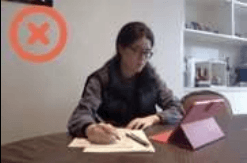
- The smartphone is not positioned at the side.
- The computer screen and keyboard are not visible.
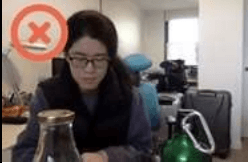
- The smartphone is not positioned at the side and doesn’t capture the upper body side profile (waist to head including hands).
- There is no view of the computer screen, keyboard, or desk space.
- The test environment is cluttered.
3. Complete Your Test
Once you’ve completed the pre-test checks and set up your secondary camera, click the ‘Start Session’ button to begin your test.
- Log in to your Kaplan Test of English account:
- If this is your first time logging in to Kaplan Test of English, use the username and password provided to you by email. You’ll then be prompted to accept the Terms and Conditions and set a new password.
- Your new password must contain at least one of the approved special characters on screen. Any other characters are not supported.
- If you have logged in before, use your username and the password you previously created:
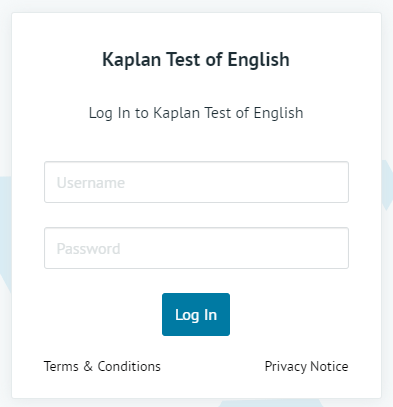
- Start your test: Open your test by clicking ‘Start assessment’
- Complete your test: When the test is finished, you’ll see a ‘Nice Work!’ message on screen. You can then exit Secure Browser using the ‘End Session’ button.
D. Troubleshooting
Problems with Kaplan Test of English
Should you experience any issues and need to exit your Talview session before your full test has been completed, please click the red cross in the top right-hand corner of your screen. Only exit via the ‘End Session’ button once your full test has been completed.
My password doesn’t work
- Make sure there are no spaces before or after your username and password.
If you have forgotten your password or need it to be reset, please contact Kaplan Test of English support at englishtest@kaplan.co.uk
I logged out or was disconnected in the middle of my test.
- Log back in as soon as possible, complete the onboarding checks again and continue the assessment from where you left off.
I received an error message during the assessment.
- Log out, ensure any prohibited software/applications are closed, and log back in as soon as possible, completing the onboarding checks again.
I can’t hear the audio, or the audio is freezing.
- Refresh the page.
- You may have internet connectivity or device problems. Log out, check your internet connection and that any speakers you are using for the test are working. Then log back in as soon as possible, complete the onboarding checks again and continue the assessment from where you left off.
I can’t record audio in the Speaking section.
- Follow the directions in the assessment to allow microphone permission.
I can’t upload my responses in the Speaking section.
- The Speaking section requires the use of consistent and reliable internet to record and upload responses. If you have slow or inconsistent internet connectivity, the recording could take up to a minute to upload successfully. Please only click the submit button once during this time.
If problems continue, please log out and contact Kaplan Test of English support at englishtest@kaplan.co.uk.
Contact englishtest@kaplan.co.uk for any other issues with Kaplan Test of English.
Problems with Talview
If you experience any issues with Talview proctoring, need further guidance or assistance, please:
- Visit the Talview Knowledge Base for further information.
- Connect with Talbot for instant guidance and basic troubleshooting.
- Submit a ticket to reach the Talview Support Team.
Support is available 24 hours a day, 365 days a year.